



Dynamics NAV 2016 has a number of keyboard shortcuts that can be used to navigate in the system. It becomes more complicated when you are running a MAC OS and Microsoft Remote Desktop Control to access Dynamics NAV in a hosted environment. First of all, you need to activate the Function Keys on your Mac correctly. This is done in the SETTINGS – KEYBOARD section of your MAC OS.
If you are connected to a Remote Desktop Session and you wish to reset your OWN password on a Windows Server, please use:
Other Microsoft Dynamics NAV Keyboard Shortcuts
Action | Dynamics NAV Classic Client | Dynamics NAV RoleTailored Client (RTC) |
| Move to the next field or character | RIGHT ARROW | RIGHT ARROW |
| Move to the previous field or character | LEFT ARROW | LEFT ARROW |
| Move to the field above in the same column | UP ARROW | UP ARROW |
| Move to the field below in the same column | DOWN ARROW | DOWN ARROW |
| Clear selected text | DELETE | DELETE |
| Close the window or undo the data entry | ESC | ESC |
| Move to the last field on a line | END | END (fn+Right Arrow for Mac) |
| Move to the first field on a line | HOME | HOME |
| Move to the next field on non-line FastTabs | ARROW, TAB, ENTER | TAB |
| Move to the next editable field | ENTER | |
| Display next document or card in a list | PAGE UP | PAGE UP |
| Display previous document or card in a list | PAGE DOWN | PAGE DOWN |
| Open Help | F1 | F1 |
| Edit | F2 | F2 |
| Select Type to filter (field filter) | F7 | F3 |
| Drop down or look up to select | F6 | F4 |
| Refresh the active window | F5 | |
| Go to the next frame | CTRL+PAGE DOWN | F6 |
| Display statistics | F9 | F7 |
| Copy the field above | F8 | F8 |
| Post | F11 | F9 |
| Select the menu bar and display access keys | F10, ALT | F10, ALT |
| Select the navigation pane | F12 | F12 |
| View error message | SHIFT+F1 | |
| Select Show Results (FlowFilter) | CTRL+F7 | SHIFT+F3 |
| Open a lookup window (from an ellipsis button) | F6 | SHIFT+F4 |
| Go to the previous frame | CTRL+PAGE UP | SHIFT+F6 |
| Open the related card | CTRL+F5 | SHIFT+F7 |
| Drop down or look up to view | F6 | SHIFT+F8 |
| Post and Print | SHIFT+F11 | SHIFT+F9 |
| Display a shortcut menu | SHIFT+F10 | SHIFT+F10 |
| Apply Entries, Get Source Doc, or Get Whse. Doc | SHIFT+F11 | SHIFT+F11 |
| Open the Role Center from the navigation pane | SHIFT+F12 | |
| Move to the previous field | ARROW, SHIFT+TAB | SHIFT+Tab |
| Collapse or expand the Action Pane | CTRL+F1 | |
| Create a new document | F3 | CTRL+F2 |
| Select Search pages | CTRL+F3 | |
| Look up to the related list | F5 | CTRL+F4 |
| View entries | CTRL+F5 | CTRL+F7 |
| Release document | CTRL+F11 | CTRL+F9 |
| Select the Action Pane and display key tips | CTRL+F10 | |
| Reconcile or Split Line | CTRL+F11 | CTRL+F11 |
| Select the address bar | CTRL+F12 | |
| Copy | CTRL+C | CTRL+C |
| Export to Microsoft Office Excel | CTRL+E | CTRL+E |
| Show Links | CTRL+L | |
| Create a new record | F3 | CTRL+N |
| Open the company | CTRL+O, F12 | CTRL+O |
| CTRL+P | CTRL+P | |
| Select Sorting | SHIFT+F8 | CTRL+T |
| Paste | CTRL+V | CTRL+V |
| Export to Microsoft Office Word | CTRL+W | CTRL+W |
| Cut | CTRL+X | CTRL+X |
| Undo | CTRL+Z | CTRL+Z |
| Move up while the selected line stays selected | CTRL+UP ARROW | |
| Move down while the selected line stays selected | CTRL+DOWN ARROW | |
| Move to the first field on a line | CTRL+LEFT ARROW | CTRL+LEFT ARROW |
| Move to the last field on a line | CTRL+RIGHT ARROW | |
| Open the About this Page/Report window (Zoom) | CTRL+F8 | CTRL+ALT+F1 |
| Delete the selected line | F4 | CTRL+DELETE |
| Move to the first line in a list | CTRL+HOME | CTRL+HOME |
| Move to the last line in a list | CTRL+END | CTRL+END (fn+Right Arrow for Mac) |
| Save and close window (equivalent to clicking OK). | ESC | CTRL+ENTER |
| Insert new line | F3 | CTRL+INSERT |
| Select Limit totals to (table filter) | SHIFT+F7 | CTRL+SHIFT+F3 |
| Clear all filters | CTRL+SHIFT+F7 | CTRL+SHIFT+A |
| Open a new card | F3 | CTRL+SHIFT+C |
| Show dimensions | CTRL+SHIFT+D | CTRL+SHIFT+D |
| Edit list | CTRL+SHIFT+K | |
| View list | CTRL+SHIFT+L | |
| Collapse/expand a line in a hierarchy | CTRL+SHIFT+A | CTRL+SHIFT+Q |
| Open a card or a document in View mode | CTRL+SHIFT+V | |
| Open a list place in a separate window | CTRL+ENTER | CTRL+SHIFT+W |
| Save and close the window and open a new window | CTRL+SHIFT+ENTER | |
| Select the menu bar and display access keys | ALT, F10 | ALT, F10 |
| Filter to the value in the field | F7 | ALT+F3 |
| Close window or close program | ALT+F4 | ALT+F4 |
| Collapse or expand the active frame | ALT+F6 | |
| Display the Actions menu of the active frame | ALT+F10 | |
| Display the Actions menu | ALT+A | |
| Display the Related Information menu | ALT+I | |
| Display the Reports menu | ALT+R | |
| Display the Microsoft Dynamics NAV menu | ALT+M | |
| Go to the previous window in the navigation history | ALT+LEFT ARROW | |
| Go to the next window in the navigation history | ALT+RIGHT ARROW | |
| Move to the field below without opening the drop-down menu | ALT+ENTER | |
| Switch among open windows | ALT+TAB |
Hello, This does not work and I'm not aware of any upcoming updates that will make it so. As of now the Excel add-in will only work on a Windows version of Office, it.
For more information, Contact CBR Technology at 855-227-0700 or via e-mail at Sales@CBRTechnology.com .
Navision Foreach
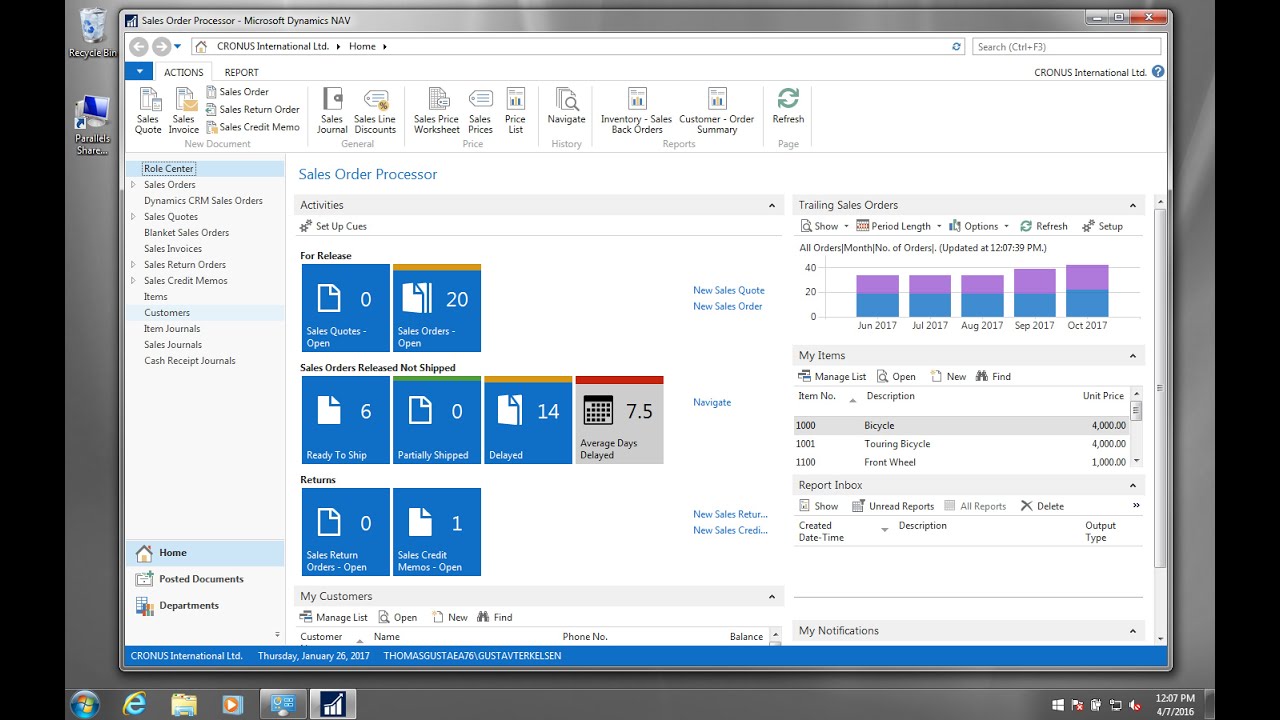
Dynamics NAV Keyboard Shortcuts. We all like to save precious seconds in the day so take a look at our list of Dynamics NAV keyboard shortcuts to work faster and look like a Pro! Alternatively, if you are looking for keyboard shortcuts for Dynamics 365 Business Central, visit this page. For Dynamics NAV – Role Tailored Client. With Microsoft Dynamics NAV for Windows, you get the familiar Dynamics NAV experience in a fresh and modern interface designed for mobile devices and desktop computers. Microsoft Dynamics NAV is a global business solution that provides small and midsize businesses greater control over their financials and can simplify their supply chain. MobileNAV is THE ULTIMATE mobile solution for Microsoft Dynamics NAV (formerly Navision). It ensures online and offline work for typical out-of-office ERP activities, like sales, service and project management. Furthermore, it guarantees real-time tracking of your business, for example, in warehouse and production-related workflows.